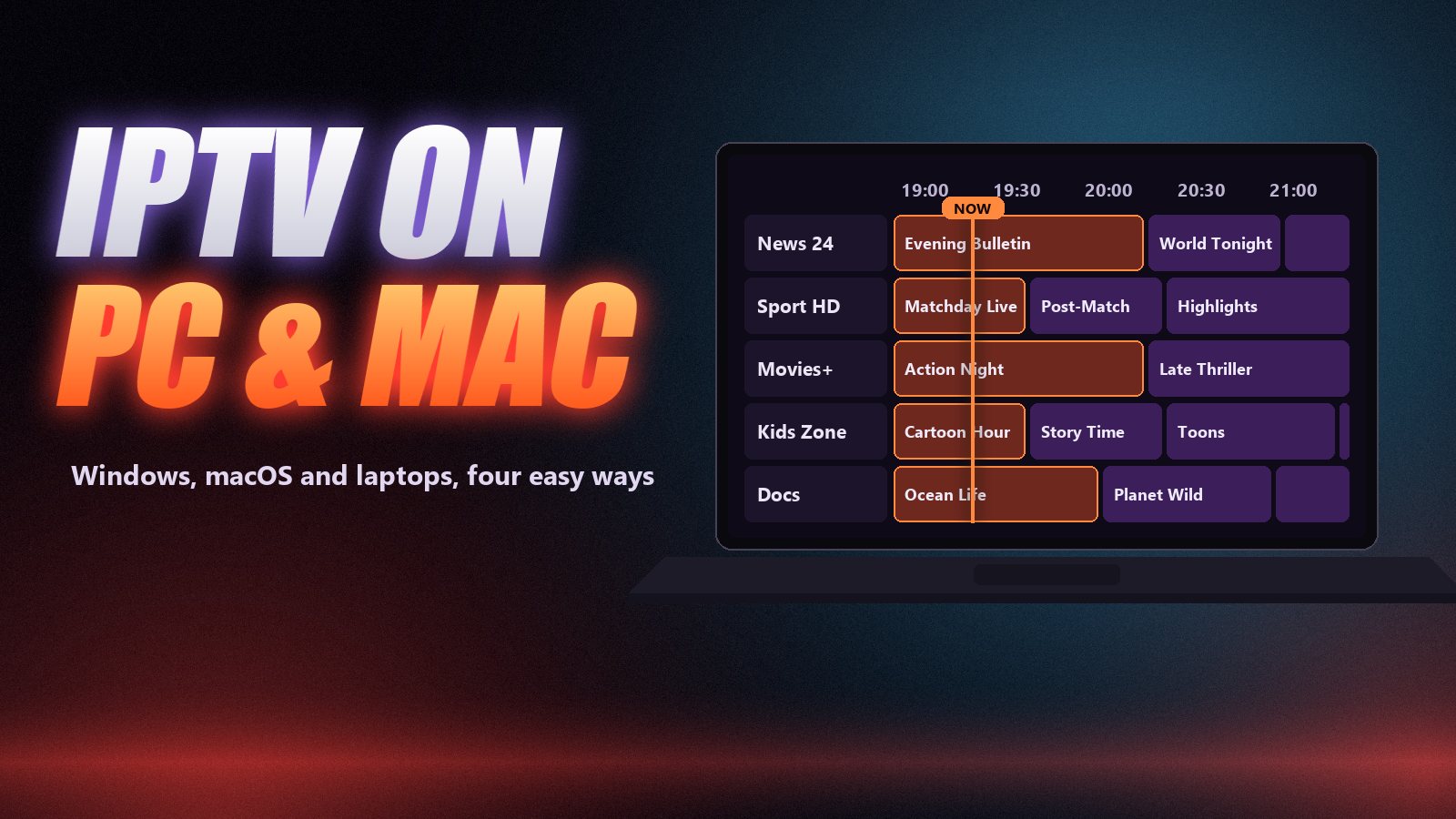
You do not need a Smart TV or a Firestick to watch IPTV. Any Windows PC, Mac or laptop can play live channels and on-demand titles with a free player and the login your provider sent you. A computer is also the easiest place to test a new subscription, to check a channel when the TV is busy, or to keep watching on a work trip.
Below are the four ways to watch IPTV on a computer, which one to choose, a step-by-step VLC setup that takes about five minutes, and the fixes for the problems people usually hit on a PC. New to IPTV? Our guide to what IPTV is covers the basics first.
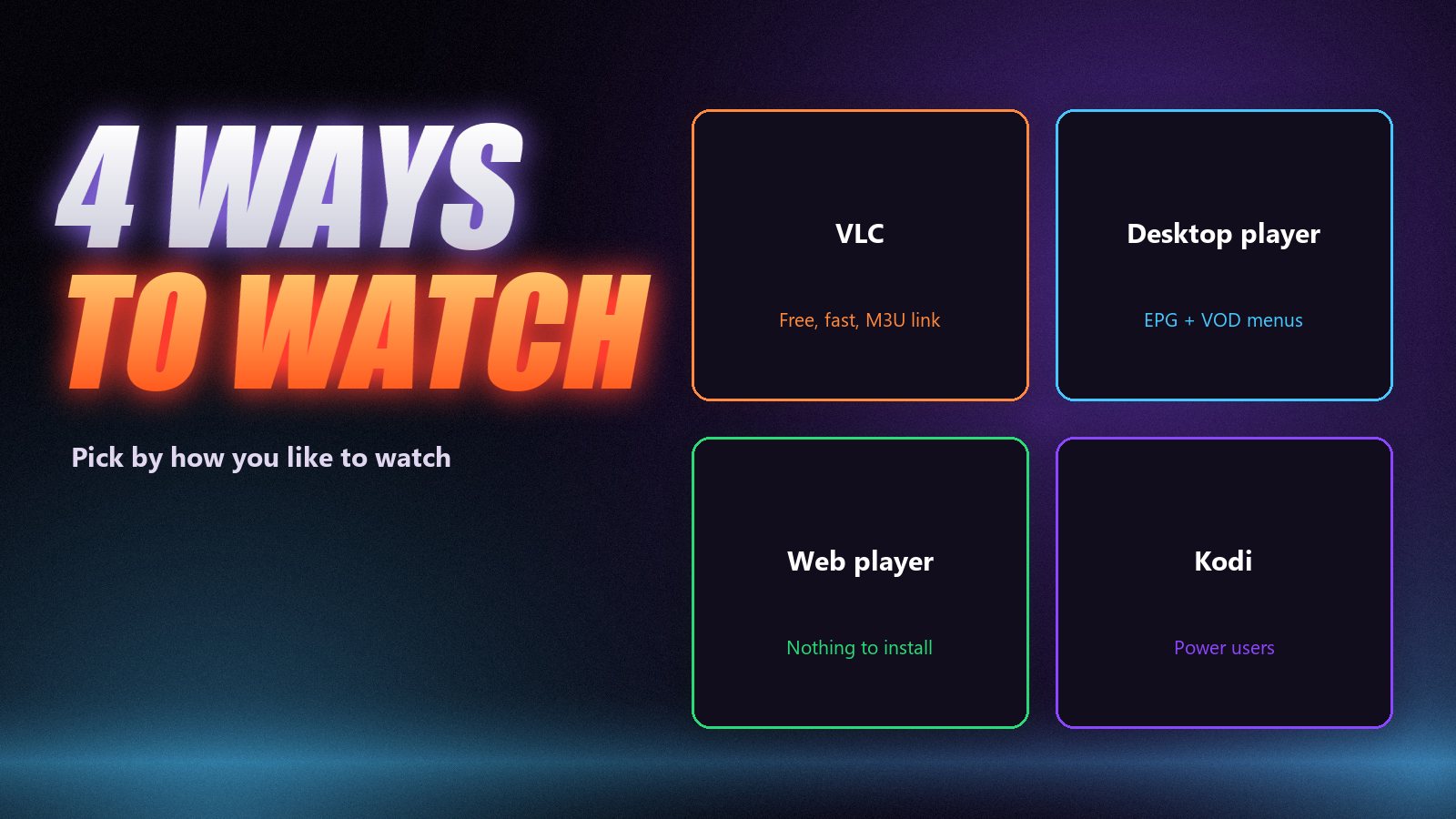
Four ways to watch IPTV on a PC or Mac
| Method | Best for | Guide (EPG) | Cost |
|---|---|---|---|
| VLC media player | Quick, reliable live viewing from an M3U link | Limited | Free |
| Desktop IPTV player | TV-style menus, films and series, Xtream login | Yes | Free or small fee |
| Web player | Borrowed or work computers, nothing to install | Often | Free |
| Kodi + PVR IPTV Simple Client | Power users, recording, custom skins | Yes | Free |
If you just want to watch, start with VLC. If you will use the computer as your main TV, a desktop player or Kodi gives you the guide and the on-demand library in proper menus. Our best IPTV player apps guide compares the main players across devices.
Method 1: VLC, step by step
VLC plays almost anything, runs on Windows, macOS and Linux, and costs nothing. It does not show a full programme guide, but for live channels it is fast and very stable. Our dedicated IPTV on VLC guide covers more settings; here is the short version.
Install VLC
Download VLC media player from its official site, videolan.org. It is free, open source and has no adverts. Avoid copies from download portals, which sometimes bundle extra software.
Copy your M3U link
Your provider sends either an M3U link or a server address with a username and password. VLC needs the link. If you only have the three fields, ask support for the M3U version; our guide to M3U playlists shows what it looks like.
Open the network stream
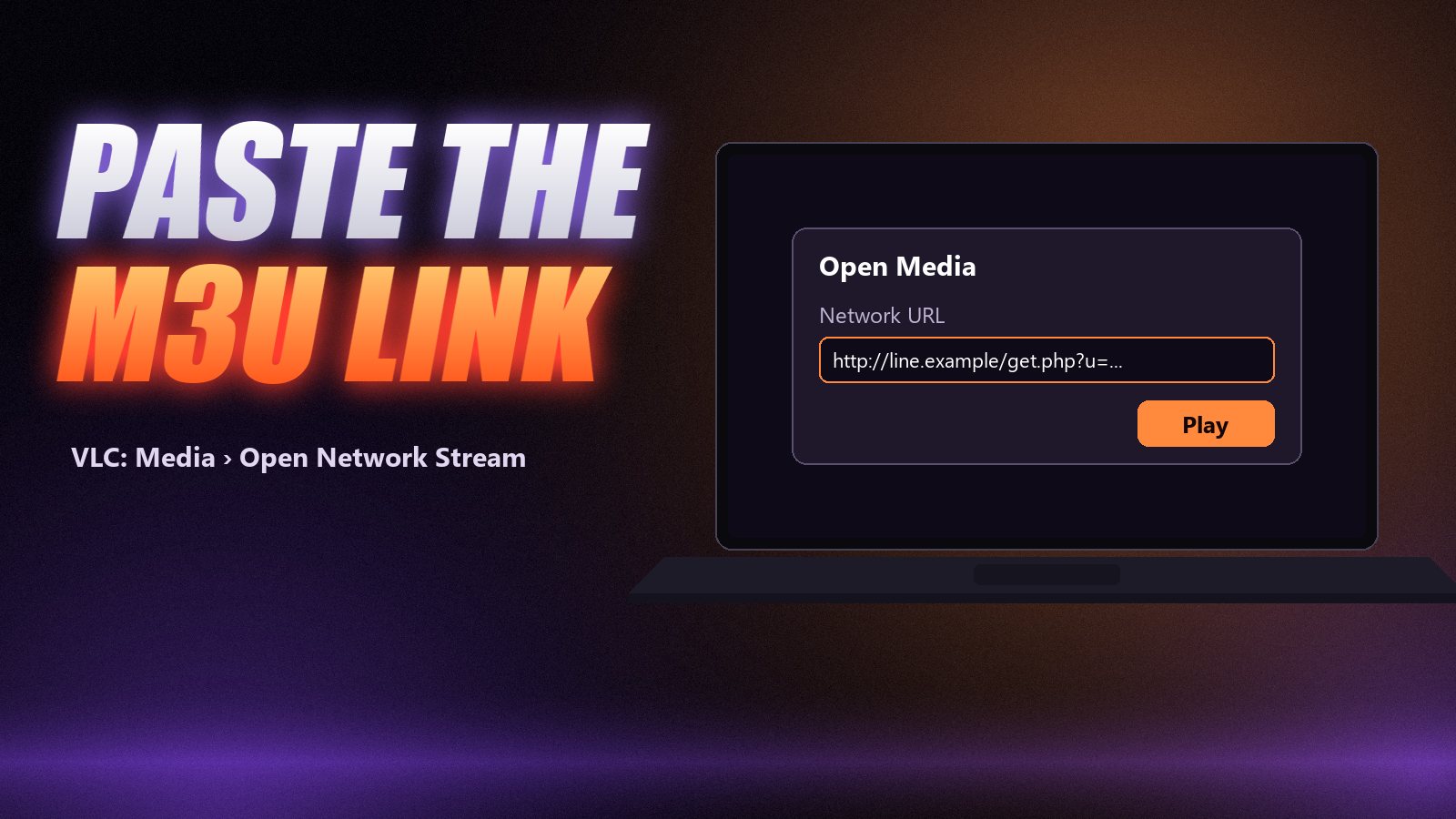
On Windows press Ctrl + N, or go to Media › Open Network Stream. On a Mac use File › Open Network. Paste the full link and press Play.
Pick a channel from the playlist
Press Ctrl + L (Cmd + L on Mac) to show the playlist. Channels load in the order the provider lists them; use the search box at the top to find one by name. Large line-ups can take a minute to load the first time.
Save it for next time
Use Media › Save Playlist to File to keep a local copy, or simply paste the link again next time. Saved copies do not update when the provider changes channels, so refresh it now and then.
Keep your link private
Your M3U link contains your username and password. Do not paste it into public forums or share it “just to test”: every stream someone else plays counts against your connections.
Method 2: a desktop IPTV player
Desktop IPTV players look like the apps on a Firestick: channel groups on the left, a programme guide, separate sections for films and series, favourites and search. Most accept the three-field Xtream Codes login, which loads the guide and the on-demand library automatically.
- Windows: install a player that supports Xtream Codes or M3U from its official site or the Microsoft Store, open it, choose “Login with Xtream Codes API” or similar, and enter the server, username and password exactly as sent.
- Mac: Macs with Apple silicon can install many iPad IPTV apps from the Mac App Store. Search the store for IPTV players, check that the developer offers the Mac version, and sign in the same way.
Method 3: a web player
Some providers and app makers offer a browser-based player: open the page, enter your login, watch in a tab. It is handy on a work laptop where you cannot install software. Expect it to be less smooth than an installed player, and only use a web player your provider recommends, since you are typing your login into it.
Method 4: Kodi
Kodi is a free media centre for Windows, macOS and Linux. With the PVR IPTV Simple Client add-on it loads your M3U playlist and an XMLTV guide into a full TV interface, with recording on supported setups. It takes longer to configure; our IPTV on Kodi guide walks through it.
Common PC problems and fixes
| Problem | Fix |
|---|---|
| Playlist will not open in VLC | Check the link is complete and starts with http; ask support for a fresh M3U link |
| Stutters on Wi-Fi | Plug in an Ethernet cable or move to 5 GHz Wi-Fi near the router |
| Smooth on HD, freezes on 4K | Older laptops struggle to decode 4K; use the FHD version of the channel |
| No guide in VLC | Normal: use a desktop player or Kodi for a full EPG |
| Works on PC, not on the TV | The line is fine; see IPTV not working for device fixes |
| “Max connections” error | Another screen is streaming; see connections explained |
Watching from the laptop on the TV
An HDMI cable from the laptop to the TV is the most reliable way to put a computer stream on the big screen. Wireless casting can work but tends to drop frames on fast sport. For everyday viewing, an app on the TV itself or on a Firestick is the better long-term setup, and the computer stays free.
Frequently asked questions
Yes. Any Windows PC, Mac or laptop can play IPTV with a player such as VLC, a desktop IPTV app, a web player or Kodi. You only need your IPTV login or M3U link and a stable internet connection.
VLC is the simplest free option for an M3U link. If you want a TV-style interface with a programme guide and on-demand menus, use a desktop IPTV player that accepts Xtream Codes logins, or Kodi with the PVR IPTV Simple Client add-on.
Install VLC for macOS, choose File › Open Network and paste your M3U link. Macs with Apple silicon can also run several iPad IPTV apps from the Mac App Store, which give a fuller interface with a guide.
Sometimes. Some providers and app makers offer a web player where you sign in with your server, username and password. It is convenient on a work computer or a borrowed laptop, but usually less smooth than an installed player.
Yes. A stream playing on a computer counts as one connection like any other screen. If someone is watching on the TV at the same time, your plan needs at least two connections.
Connect the laptop to the TV with an HDMI cable, which is the most reliable way. Casting from a browser works on some setups but often drops frames on live channels; an app installed on the TV or a Firestick is better for regular viewing.
Five minutes to live TV on your computer
Install VLC, paste your M3U link into Open Network Stream and press Play. That is enough to test a subscription or watch on the go. If you end up watching on the computer every day, move to a desktop player or Kodi for the guide and the film menus. You can try it with a free 24-hour Zoryflix trial: the line works on your laptop, your TV and your phone with the same login.
The Zoryflix support desk
Written by the same team that answers your messages at 2 a.m. Everything here comes from real tickets — the fixes that worked, in the order they usually work. Something still not right? Message us on WhatsApp.