Your IPTV was fine yesterday and today it is not. Channels will not load, the picture freezes every few seconds, or the app shows an error you have never seen. Before you reinstall everything or assume the provider has vanished, it is worth knowing that most IPTV problems are local and take minutes to fix, and that one simple test tells you whether the fault is on your side or the server’s.
This guide gives you that test, the eight fixes worth trying in order, what the common error messages mean, and how to report a problem so it gets fixed quickly.
First: is it you or the server?
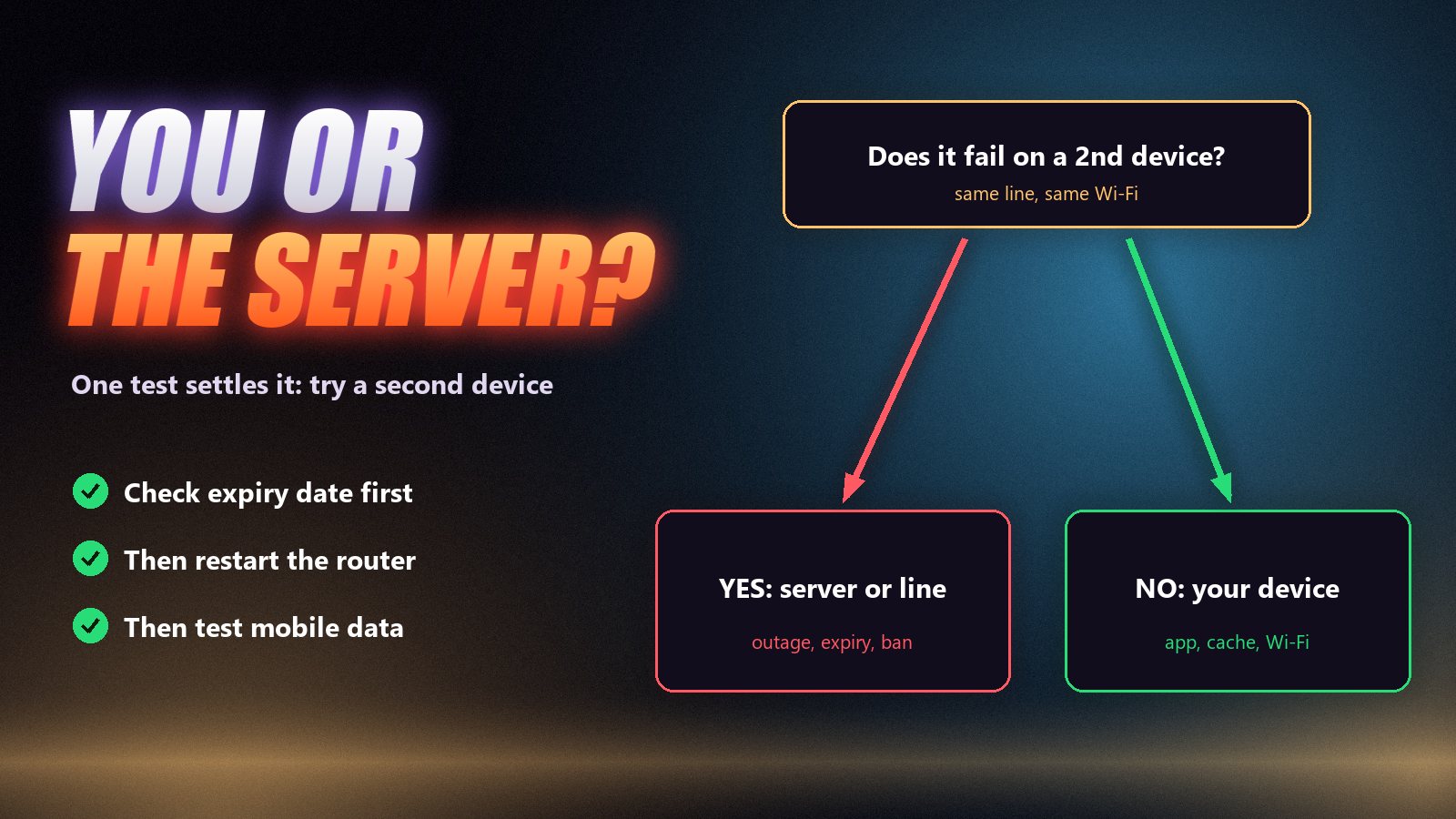
Take the same login and try it on a second device on the same network: a phone with IPTV Smarters installed is enough. Then, if you can, try it on mobile data instead of your Wi-Fi.
| What you see | What it means | What to do |
|---|---|---|
| Works on the phone, fails on the TV | Your TV, its app or its Wi-Fi | Fixes 1, 4, 5 and 6 below |
| Fails on both at home, works on mobile data | Your home internet or router | Reboot the router; ask your provider about blocking |
| Fails everywhere, line active | Server or line problem | Message support |
| Fails everywhere, line expired | Subscription ended | Renew the plan |
| Only some channels fail | Those feeds are down or moved | Try another version; report the channel |
Eight fixes, in the order worth trying
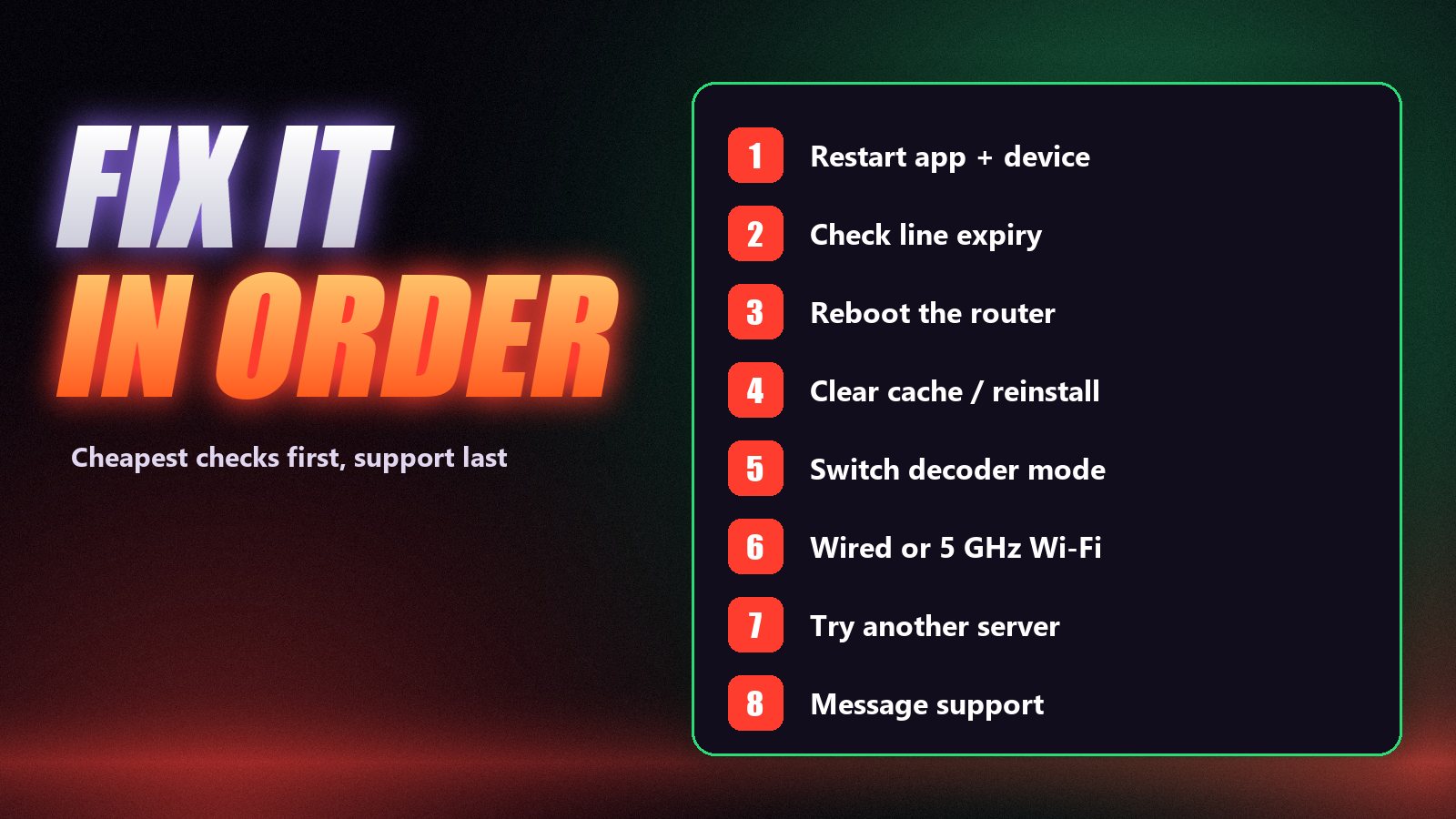
Start at the top. The early steps are quick and solve most problems; the later ones are for what is left.
Restart the app and the device
Close the player completely, not just back to the home screen, then restart the device itself. On a Firestick hold Select and Play for five seconds; on a TV, unplug it for a full minute. This clears stuck streams and memory leaks and fixes more problems than anything else on this list.
Check that the line is active
Most apps show an account or user info screen with the expiry date and the number of active connections. An expired line, or one already in use on another screen, looks exactly like a broken service. If the date has passed, the fix is a renewal, not a reinstall.
Reboot the router
Unplug the router for thirty seconds and plug it back in. Routers that run for weeks slow down, and a reboot also gives you a fresh route to the provider’s servers.
Clear the cache or reinstall the app
In Android settings, open the app, clear the cache and try again. If channels still fail to load, uninstall, reinstall and enter the login fresh. Old playlists and guide data can corrupt after updates.
Switch the decoder
If channels start but freeze, show a black picture with sound, or stutter on 4K, change the player’s decoder from hardware to software or back. Our guide to the hardware vs software decoder setting shows where it is.
Move to a cable or 5 GHz Wi-Fi
2.4 GHz Wi-Fi through two walls is the single most common cause of evening buffering. An Ethernet cable, or 5 GHz Wi-Fi close to the router, fixes it more reliably than any app setting. Check the numbers in our speed guide.
Try a different server or channel version
Many line-ups carry the same channel in several qualities. If the 4K version stalls, try FHD or HD. If every channel fails on one provider but your connection tests fine, ask support to move your line to another server node.
Message support with specifics
Send the channel name, the time, the device and what you see, ideally with a photo of the error. “Sky Sports Main Event, 8:05 pm, Firestick, freezes every 30 seconds” gets fixed far faster than “it doesn’t work”.
Common errors and what they mean
| Error or symptom | Usual cause | Fix |
|---|---|---|
| “Invalid username or password” | Typo, expired line, or wrong server address | Re-enter details exactly, check expiry |
| “Max connections reached” | Another device is streaming on your line | Close other streams; see connections explained |
| Channels load, then spin forever | Slow or unstable connection, busy server | Cable or 5 GHz, lower quality version |
| Black screen with sound | Decoder mismatch | Switch hardware/software decoder |
| Guide says “No information” | EPG not loaded or not mapped | Reload EPG; see EPG explained |
| Error 403 / 404 / 503 on every channel | Line blocked, moved or server down | Message support with the code |
| Works in the day, fails at night | Evening congestion at home or ISP | Wired connection; test with and without a VPN |
Freezing only on sports at prime time?
That is the hardest load any server faces, and the place where providers really differ. If it happens on several devices and a wired connection, your provider is struggling at peak. Our Firestick buffering guide covers the device side; the provider side is something a trial should test before you pay.
App-specific problems
If the trouble is inside one app, the dedicated guides go further: IPTV Smarters Pro not working covers its login, playlist and update errors, and our device guides for Firestick, Samsung, LG and Android boxes each end with a troubleshooting section for that platform.
When a VPN fixes it, and when it makes it worse
If IPTV works on mobile data but not on your home internet, or only fails in the evening, your internet provider may be slowing or blocking the stream. A good VPN with a nearby server can get around that. If your connection is simply slow, a VPN adds overhead and makes it worse. Our guide to using a VPN for IPTV shows how to test both ways.
How to report a problem so it gets fixed
Support can only fix what it can reproduce. Send the channel name, the time it happened, the device and app, whether it happens on other devices, and a photo of any error. Zoryflix support runs 24/7 on WhatsApp, and a line that keeps having problems can be moved to a different server node in minutes.
Frequently asked questions
Most often the cause is local: the line has expired, the app or device needs a restart, or the Wi-Fi is struggling. Check the expiry date in the app, restart the device and router, and test on a second device. If every device fails on a line that is active, the problem is on the provider’s side.
Try the same login on a second device on the same network, and then on mobile data. If it fails everywhere while the line shows as active, the server or your line has a problem; message support. If it works on other devices, the issue is your device or app.
Freezing usually means the stream is arriving slower than the picture needs: weak Wi-Fi, a busy connection in the evening, a device that struggles with 4K, or an overloaded server. Use a cable or 5 GHz Wi-Fi, try a lower quality version of the channel, switch the decoder, and check whether it happens on every channel.
Individual channels go down when the source feed changes or fails, which is normal and usually fixed within hours. If only one channel fails, try another version of it or report it to support. If whole groups fail, reload the playlist or check with support.
Then the line and server are fine. The problem is the TV app, its cache, the TV’s Wi-Fi or its decoder. Restart the TV, clear the app cache or reinstall it, and connect the TV with a cable if you can.
Some internet providers block or slow certain servers, often only in the evening. If IPTV fails on your home internet but works on mobile data, ask your IPTV provider for an alternative server address. A VPN can also help in that specific case; see our VPN guide.
Fix it in five minutes, most of the time
Test a second device, check the expiry date, restart everything, and move the TV onto a cable or 5 GHz Wi-Fi. That sequence solves the large majority of “IPTV not working” moments without a single message to support. If you still see freezes on every device at prime time, the problem is the provider, and no setting will fix it. In that case, try a service on a free 24-hour trial and judge it on a busy evening before you pay.
The Zoryflix support desk
Written by the same team that answers your messages at 2 a.m. Everything here comes from real tickets — the fixes that worked, in the order they usually work. Something still not right? Message us on WhatsApp.