Most guides about IPTV on Roku start by telling you to open the Channel Store and install a well-known player. Then you search, find nothing, and spend the next hour reading forum posts about a downloader that does not exist on the platform. The reason is simple, and nobody says it in the first paragraph: Roku is a closed system, and the big IPTV players do not publish a Roku app.
That is not the end of the story. Roku owners do watch IPTV, every day, using three methods that genuinely work. This guide explains what each one does, what it costs you in quality or convenience, and which one to pick for the screen you actually own. The fastest route takes about ten minutes.
The quick answer
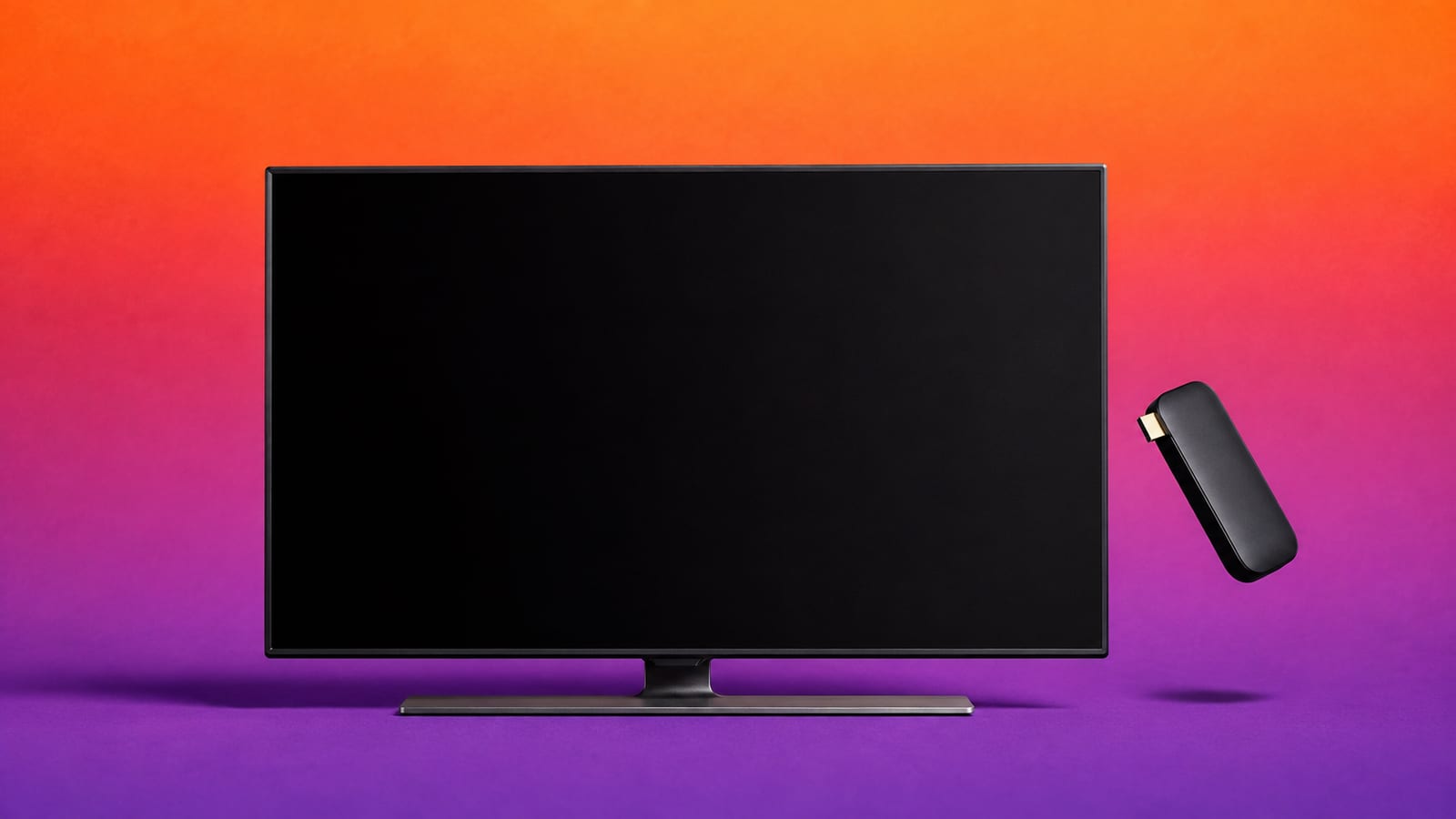
If you want IPTV on a Roku today, open the Channel Store and search for a playlist or M3U player; if one is available in your country and it accepts your provider’s URL, add the playlist and you are done. If nothing suitable appears — which is the common outcome — cast from your phone for an occasional match, or plug a streaming stick into a spare HDMI port for a proper everyday setup. Do not go looking for a sideloading trick. It does not exist on Roku.
A player is not a subscription
None of these methods supply channels. They read a playlist from a provider you already pay. Use content and subscriptions you are legally entitled to access in your country, and ignore any listing promising a lifetime channel package inside the app itself.
Why Roku behaves differently from every other TV
Roku OS is deliberately narrow. Every app — Roku calls them channels — is published through the Roku Channel Store and reviewed before it appears. There is no equivalent of Android’s Unknown Sources, no file manager, no way to open an installer from a USB stick, and no browser capable of loading one. The developer mode built into the device exists so that people writing their own channels can test them; it is not a back door for installing someone else’s.
That design is why Roku is stable and cheap, and also why the IPTV ecosystem largely skipped it. Developers of the popular players target Android TV, Fire TV, iOS and Windows because those platforms let them ship freely. Roku owners are left with whatever small playlist apps have passed store review — a much shorter and more changeable list.
| Platform | Sideloading | Major IPTV players available |
|---|---|---|
| Roku OS | Not possible | A few small store apps only |
| Fire TV / Firestick | Yes, via Downloader | Most, including TiviMate and Smarters |
| Android TV / Google TV | Yes, plus Play Store | Most |
| Samsung Tizen / LG webOS | No, store only | Several store players |
| Apple tvOS | No, App Store only | Several App Store players |
The three methods, compared honestly
Pick by how you actually watch. Someone who wants live sport four nights a week needs something different from someone catching one match a month.
| Method | Cost | Picture quality | EPG and favourites | Best for |
|---|---|---|---|---|
| Channel Store player | Free to low | Good when it works | Basic or none | Simple M3U playlists |
| Cast from a phone | Free | Reduced by re-encoding | None on the TV | Occasional viewing |
| HDMI streaming stick | One-off hardware | Full quality | Full guide and favourites | Everyday use, sport |
The order below is the order worth trying: start with the cheapest thing that might work, and stop as soon as one of them is good enough for you.
Method 1 — Use a Channel Store playlist player
Search the store on the TV itself
2 min
Press Home, open Streaming Channels, then Search Channels. Search for IPTV and for M3U separately — the two searches return different results. Search on the television, not on a phone or a website, because the catalogue you see depends on your country and your Roku account region.
Check what the app accepts before installing
2 min
Read the description. You need an app that takes the format your provider gave you: a plain M3U or M3U8 playlist URL, or Xtream Codes details made up of a server address, a username and a password. Most Roku playlist apps handle M3U only. If yours is an Xtream login, ask the provider for the equivalent M3U URL before giving up.
Add the playlist
3 min
Some apps let you type the URL with the on-screen keyboard. Others show a code and ask you to open a website on your phone, enter the code, and paste the playlist there. If it is the second kind, confirm the website address shown inside the app matches the one you open, and never paste your credentials into a site the app did not name.
Set expectations before you start. These apps are small projects, not television-grade software. Channel logos are often missing, the programme guide is basic or absent, group handling is crude, and a playlist with tens of thousands of entries may load slowly or not at all. When one works with your provider it is a genuinely tidy solution; when it does not, no amount of retrying will change it.
Test with a small playlist first
If your provider can give you a short trial playlist, or you can trim yours to a few hundred channels, load that first. It separates “this app cannot read my URL” from “this app cannot cope with fifty thousand channels”, and the two problems have completely different answers.
Method 2 — Cast or mirror from a phone or laptop
Every Roku supports screen mirroring, and this is the one method guaranteed to be available on the device you already own. Install a proper IPTV player on your phone, tablet or laptop, log in there, and send the picture to the television.
Enable mirroring on the Roku
1 min
Go to Settings → System → Screen mirroring and set the mode to prompt or always allow. Keep the Roku and the phone on the same network and, ideally, on the same 5 GHz band.
Cast from the player
2 min
On Android or Windows, use the system cast or wireless-display control. On iPhone and Mac, use AirPlay on a Roku model that supports it. Start playback in the IPTV app first, then cast, and leave the phone unlocked with auto-lock disabled.
Be clear about the trade-off. Mirroring captures and re-encodes the screen in real time and pushes it over Wi-Fi, so a 4K stream does not arrive as 4K, motion in fast sport softens, and audio can drift by a fraction of a second. Your phone runs hot, drains battery and stops the stream when a call arrives. It is a reasonable answer for one match a month. It is a frustrating answer for a season.
Test the lineup before you buy hardware
Run Zoryflix on your phone for 24 hours and cast it to the Roku. If the channels you care about are all there, then decide how you want to watch them properly.
Method 3 — Add a streaming stick to a spare HDMI port
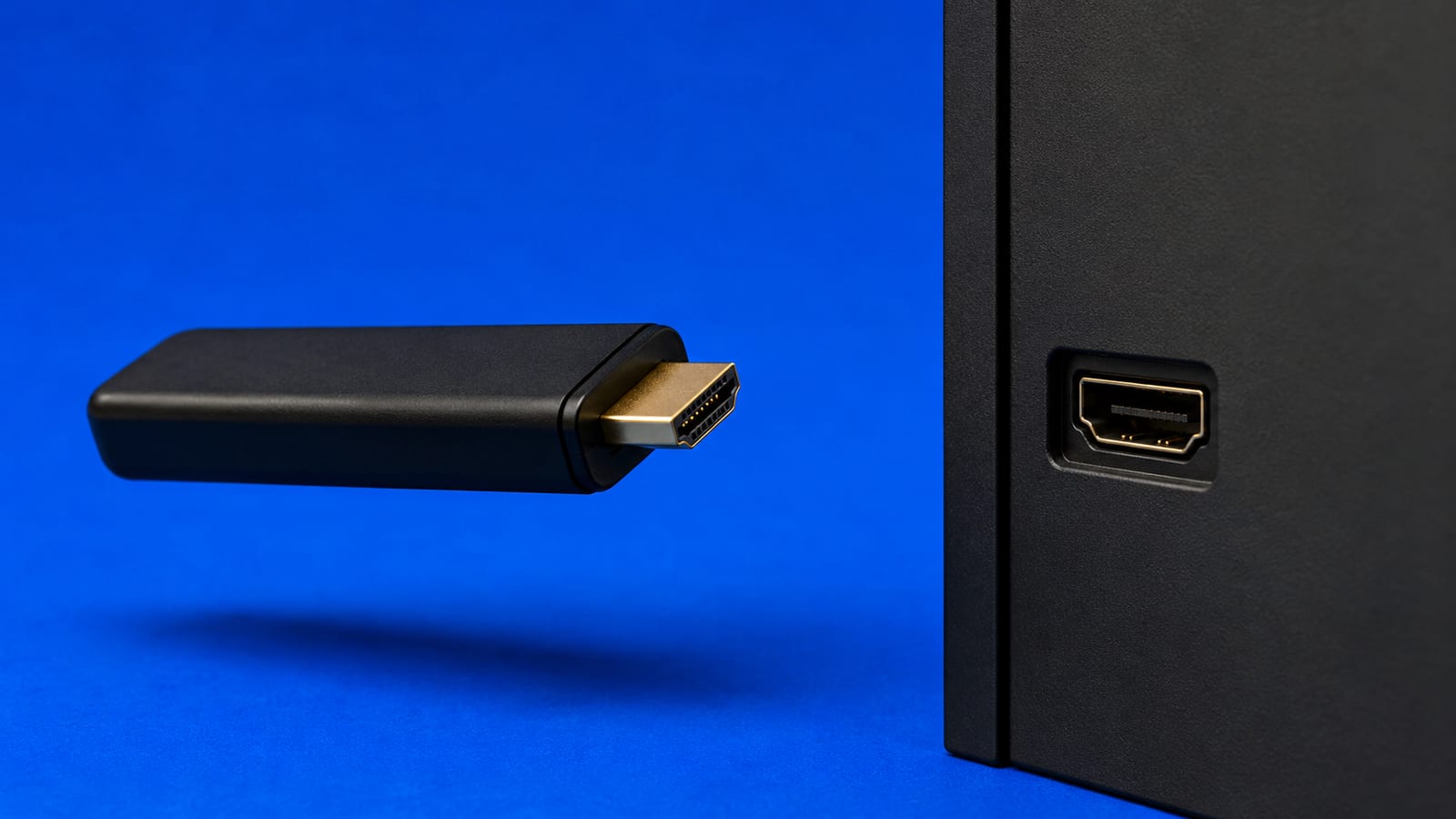
This is what most Roku owners end up doing, and it is worth doing first if you already know you want IPTV every evening. A Fire TV Stick, a Google TV device or a certified Android TV box costs less than a month or two of most subscriptions, plugs into any free HDMI port, and runs the full IPTV players: a proper programme guide, favourites, recording on some apps, buffer and decoder controls, and multiple playlists side by side.
Nothing about the Roku is wasted. The panel, the picture processing and the Roku apps you already use all stay exactly as they are. You change the input to watch IPTV and change it back afterwards, and most televisions can be set to remember the last input or rename it so the switch takes one button.
| Device | Player choice | Notes |
|---|---|---|
| Fire TV Stick 4K | Widest, sideloading supported | Cheapest path to TiviMate and Smarters |
| Google TV / Android TV | Play Store plus sideloading | Cleanest updates and casting built in |
| Android TV box | Widest, plus ethernet on most | Best for wired 4K sport |
| Apple TV | App Store players only | Excellent playback, fewer IPTV apps |
If you are choosing between them, the deciding factor is usually the network port rather than the processor — see our IPTV box buying guide for the models worth the money, and the player comparison for what to install once it arrives.
Get the network and picture right whichever method you use
Roku televisions are frequently the cheapest screen in the house, and the cheapest screens usually have the weakest Wi-Fi radios. Test the speed on the television itself rather than on a phone standing next to it. For steady HD aim for 15 Mbps at the device; for 4K, 35 Mbps leaves useful headroom once other people in the house start streaming.
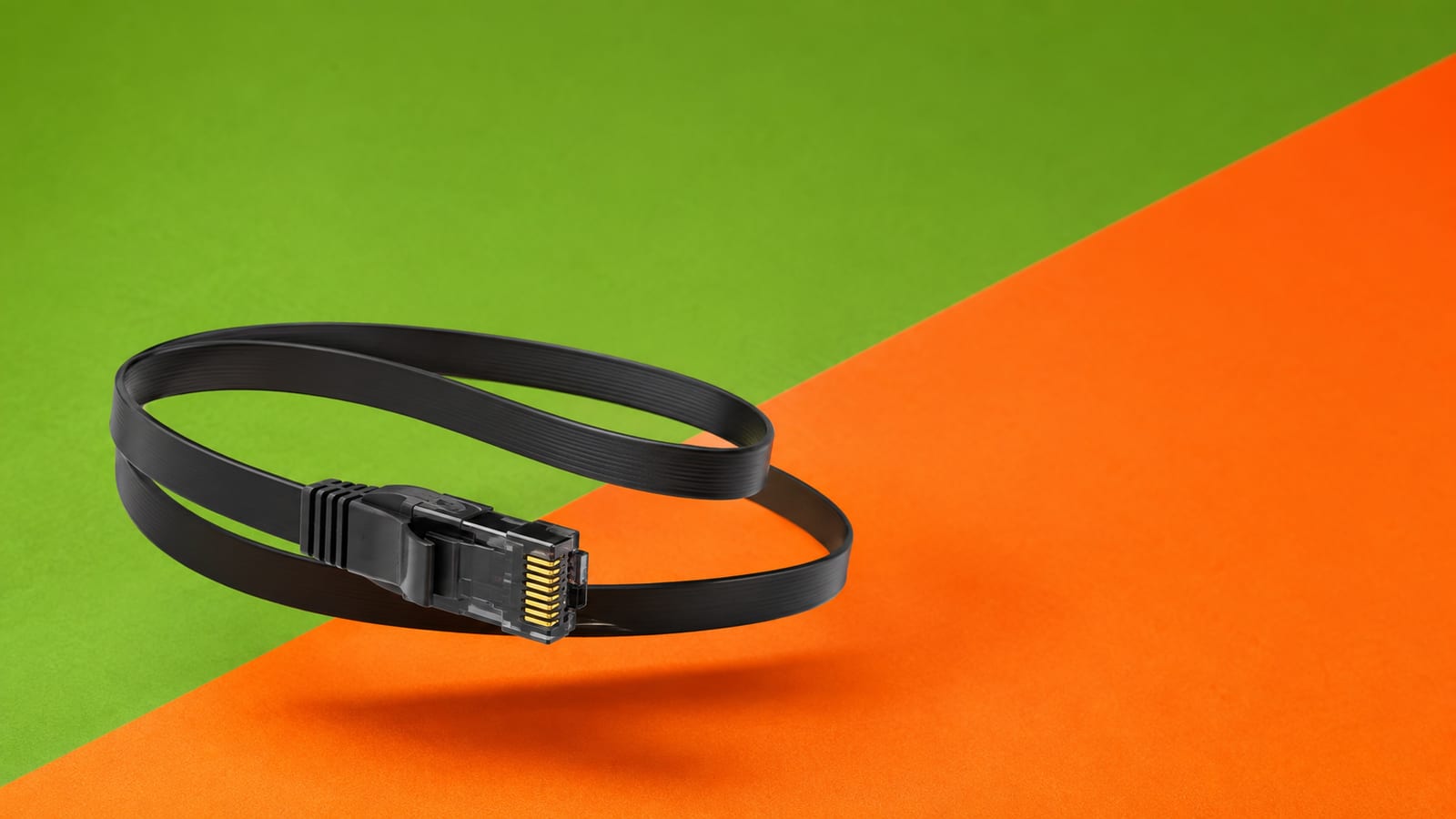
Use ethernet wherever the port exists — including on the HDMI device, where an inexpensive adapter often solves buffering that no app setting will. Where cable is impossible, join the 5 GHz network and keep the router out in the open rather than tucked behind the television. Our guide to 4K IPTV speed explains why steadiness matters more than the headline number on your bill.
On the picture side, turn off aggressive motion smoothing if football looks waxy or the ball leaves a trail, and start from a Standard or Cinema preset before adding a sports mode. If you are mirroring from a phone, lower the source resolution in the player rather than fighting the television: sending a clean 1080p stream usually looks better than sending a struggling 4K one.
What to avoid on Roku specifically
Anything sold as a Roku jailbreak. There is none. Sites selling one are collecting card details or installing something on your computer, and the Roku itself is untouched by the whole process.
Store listings using a famous player’s name and logo. If TiviMate or IPTV Smarters appears in the Roku store, it is not from the developer. Check the publisher, and treat the resemblance as a warning rather than a discovery.
Private-channel codes from forums. Roku removed the ability to add non-certified channels by code, and codes still circulating either do nothing or point to something that was pulled. Do not enter one that arrived with a payment request.
Paying an app for “channels”. A player and a subscription are separate purchases. Any Roku app claiming to include thousands of channels for a one-off fee is selling something it cannot reliably deliver.
Fix the problems Roku owners actually report
The playlist loads but nothing plays. Check the stream format. Roku playlist apps are strict about codecs and containers; an HEVC or unusual audio track that plays fine on a phone may be refused. Try a different channel and a different quality level from the same provider before blaming the app.
The app crashes on a big playlist. Roku devices have modest memory and store apps rarely handle enormous lists gracefully. Ask your provider for a filtered playlist containing only the groups you watch. This fixes far more Roku complaints than any setting.
Mirroring stutters or drops. Move both devices to 5 GHz, disable battery saver on the phone, close other apps, and stop any large upload on the network. Mirroring is bandwidth-hungry in both directions, so a busy household affects it more than normal streaming.
Sound plays without a picture. Almost always a codec the device will not decode. On a Channel Store app there is usually no software-decoding fallback, which is one of the clearest signs it is time for the HDMI route.
The guide is empty or shifted. Set the correct time zone on the television first, then adjust any offset the app offers. Correcting a wrong clock with a manual offset breaks again at the next daylight-saving change.
Frequently asked questions
Not in the way you can on Android TV or a Firestick. Roku runs a closed operating system with a curated Channel Store, it cannot sideload apps, and the few playlist players that exist are limited. The dependable routes are casting from a phone, using one of the small M3U players in the Channel Store, or plugging a streaming stick into the TV's HDMI port.
No. Neither IPTV Smarters Pro nor TiviMate publishes a Roku channel, and any listing claiming to be one is not from the developer. Both apps run on Android TV, Fire TV, iOS and Windows, which is why an HDMI device is the usual answer for Roku owners who want them.
Only through a Channel Store app that accepts a playlist URL. Roku has no system-level playlist support, no file manager, and no way to install an APK. If the store app in your country cannot read your playlist, no setting on the TV will change that.
It works, and it is free, but it is a compromise. Screen mirroring re-encodes the picture over Wi-Fi, so quality drops, your phone stays awake and warm, and calls or notifications interrupt playback. It is fine for an occasional match and poor as an everyday setup.
A small streaming stick in a spare HDMI port. It keeps the Roku panel as the display and gives you a full IPTV player, a real programme guide, favourites and buffer controls. You switch input to watch IPTV and switch back for the Roku apps you already use.
No. There is no jailbreak that adds app sideloading to a retail Roku, and the developer mode built into the device is meant for people publishing their own channels, not for installing third-party ones. Anything sold as a Roku jailbreak is a scam.
Stop fighting the platform
Roku is a good television platform that happens to be a poor IPTV platform, and no tutorial can argue that away. Try a Channel Store playlist player, because when one matches your provider it is the tidiest answer available. Cast from a phone if you only need IPTV occasionally. And if you watch most evenings — especially live sport — put ten minutes and one HDMI port into a streaming stick and get a real player, a real guide and a wired connection.
Whichever route you take, test the service before you commit to hardware. Start with the free 24-hour Zoryflix trial, confirm the channels you care about are there and stable, then decide how you want them on the big screen.
The Zoryflix support desk
Written by the same team that answers your messages at 2 a.m. Everything here comes from real tickets — the fixes that worked, in the order they usually work. Something still not right? Message us on WhatsApp.