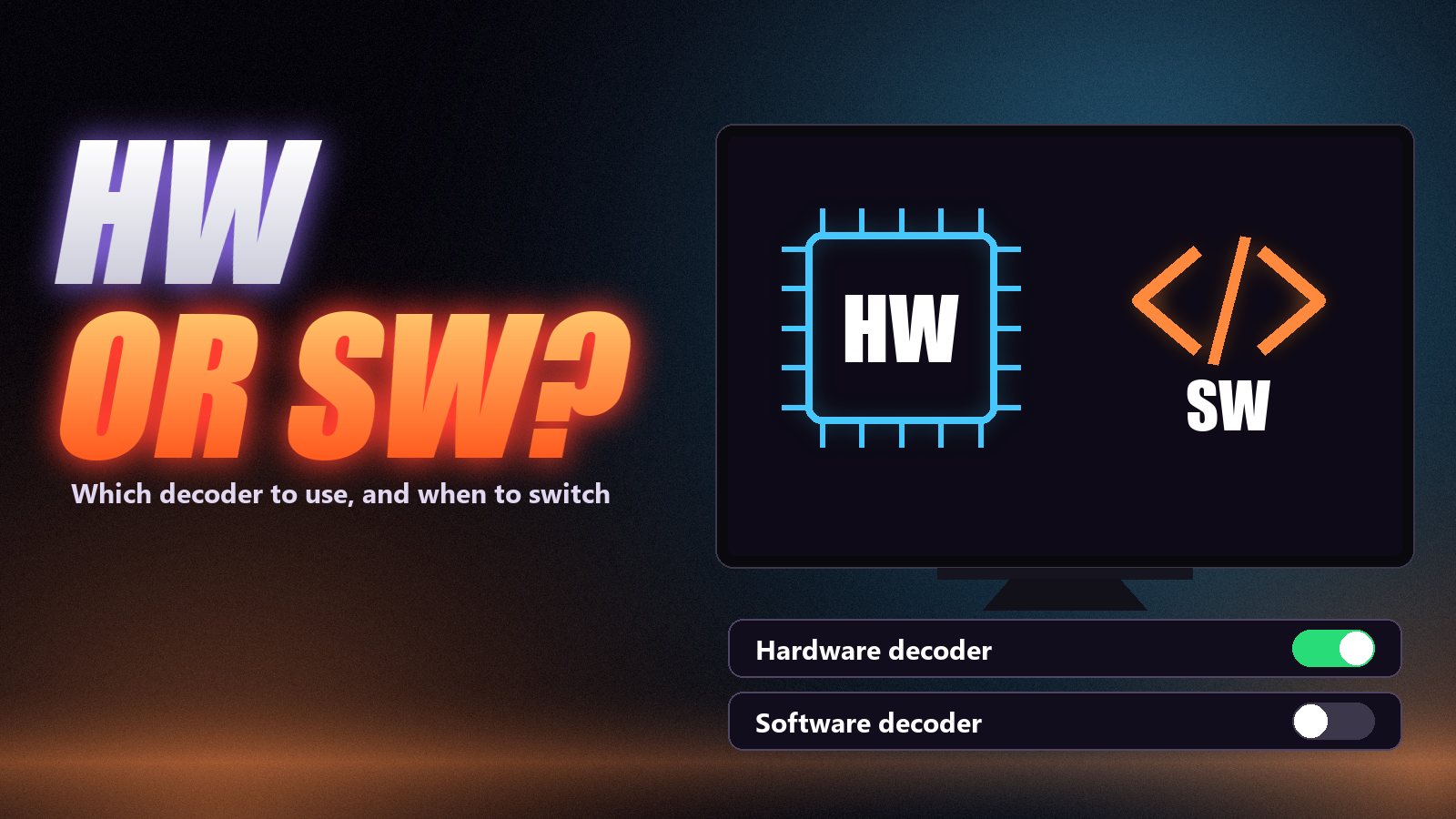
Somewhere in IPTV Smarters, and in most other IPTV players, there is a setting that asks you to choose between a hardware decoder and a software decoder. Most people never touch it, and most of the time that is right. But when a channel plays sound over a black screen, breaks into green blocks or stutters through a 4K match, this setting is often the fix, and nobody explains what it does.
Here is what the two options are, which one to use, and the symptoms that tell you it is time to switch.
What a decoder actually does
IPTV channels arrive compressed, usually in H.264 or the newer, more efficient H.265 (also called HEVC). Compression is what lets a full HD channel travel over a normal home connection, but it means every frame has to be rebuilt before it can be shown, around 50 times a second. That rebuilding is decoding.
A hardware decoder hands the job to a block of the device’s chip designed only for video. On Android devices, including every Firestick, apps reach it through the system’s media framework. It is very fast and uses little power, but it only understands the formats its maker built in, and some cheap chips handle edge cases badly.
A software decoder does the same work on the main processor, using the decoding library bundled with the player. It understands a far wider range of formats and quirks, but it is much slower and makes the device work hard. On a powerful phone that is fine; on a streaming stick playing 4K it is not.
| Hardware decoder (HW) | Software decoder (SW) | |
|---|---|---|
| Does the work | The dedicated video chip | The main processor |
| 4K and H.265 / HEVC | Smooth, if the device supports it | Often too slow on sticks and boxes |
| Heat and battery | Low | High |
| Format tolerance | Only what the chip supports | Very wide |
| Typical failure | Black screen with sound, colour blocks | Stutter, dropped frames, warm device |
Which one should you use?
Hardware, by default. On a Firestick, a recent Android TV box or a phone, the hardware decoder is the right choice for nearly every channel and essential for 4K. Treat the software decoder as a troubleshooting tool: switch to it for a channel that misbehaves, and switch back if everything else was fine. If you change the default to software and leave it there, 4K and fast sport will suffer.
HW+ is not “more hardware”
Some players offer a third option, HW+. It means hardware decoding and passing the decoded picture straight to the screen, skipping a step the player normally handles. It can be the smoothest setting, but it is also the least compatible: subtitles, aspect-ratio changes and some overlays may misbehave. If HW+ causes problems, plain HW gives up very little.
Five symptoms and what they mean
Sound but a black screen: try the software decoder
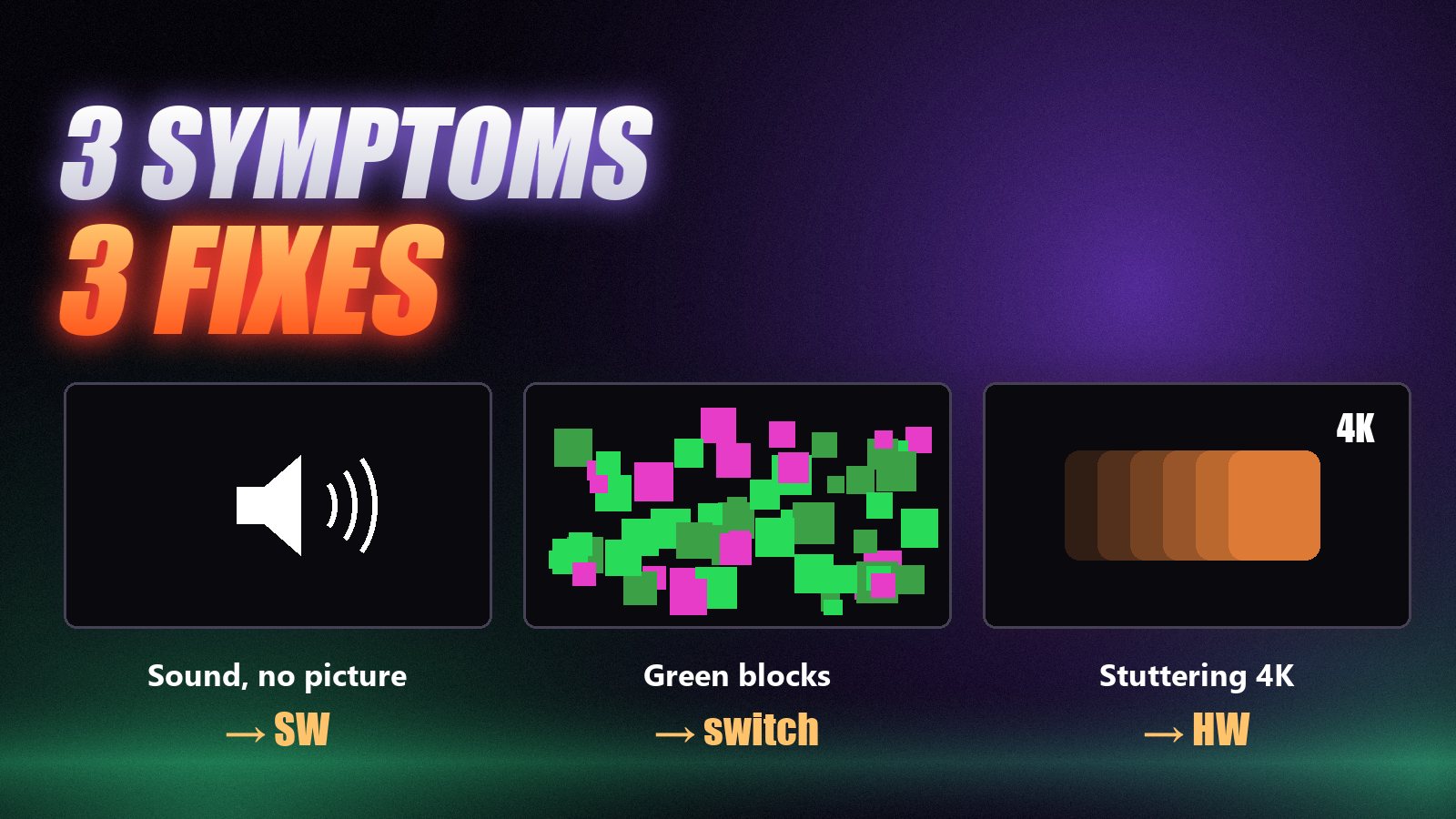
The audio plays, the picture never appears. The video chip has been handed a format it does not support, most often H.265 (HEVC) on an older or cheaper device, and it fails without saying so. The software decoder is far more tolerant of formats. If the picture appears after switching, you have found the problem.
Green or pink blocks and smearing: switch decoders
Colour blocks, frozen squares or a smeared picture that cleans up on the next scene change point to a decoder handling a stream badly. Switch to the other decoder. Budget Android boxes are the usual culprit, with hardware decoders that mishandle certain streams.
Jerky 4K or dropped frames: switch to hardware
If motion stutters while the stream itself is not buffering, the processor cannot decode the video fast enough in software. 4K and high-bitrate sport are the classic cases. Switch to the hardware decoder, which exists precisely to do this job.
No sound on some channels: look at audio, not video
Silence on certain channels or films while others are fine is usually the audio format, typically Dolby AC3 or E-AC3, not the video decoder. Turn off audio passthrough in the player or the device’s sound settings, or let the software decoder handle the audio.
Freezes with a loading circle: it is not the decoder
A spinning wheel and a frozen frame that resumes is buffering: data is not arriving quickly enough. No decoder setting fixes that. Check your connection and the server instead, starting with our buffering checklist.
Where to find the decoder setting
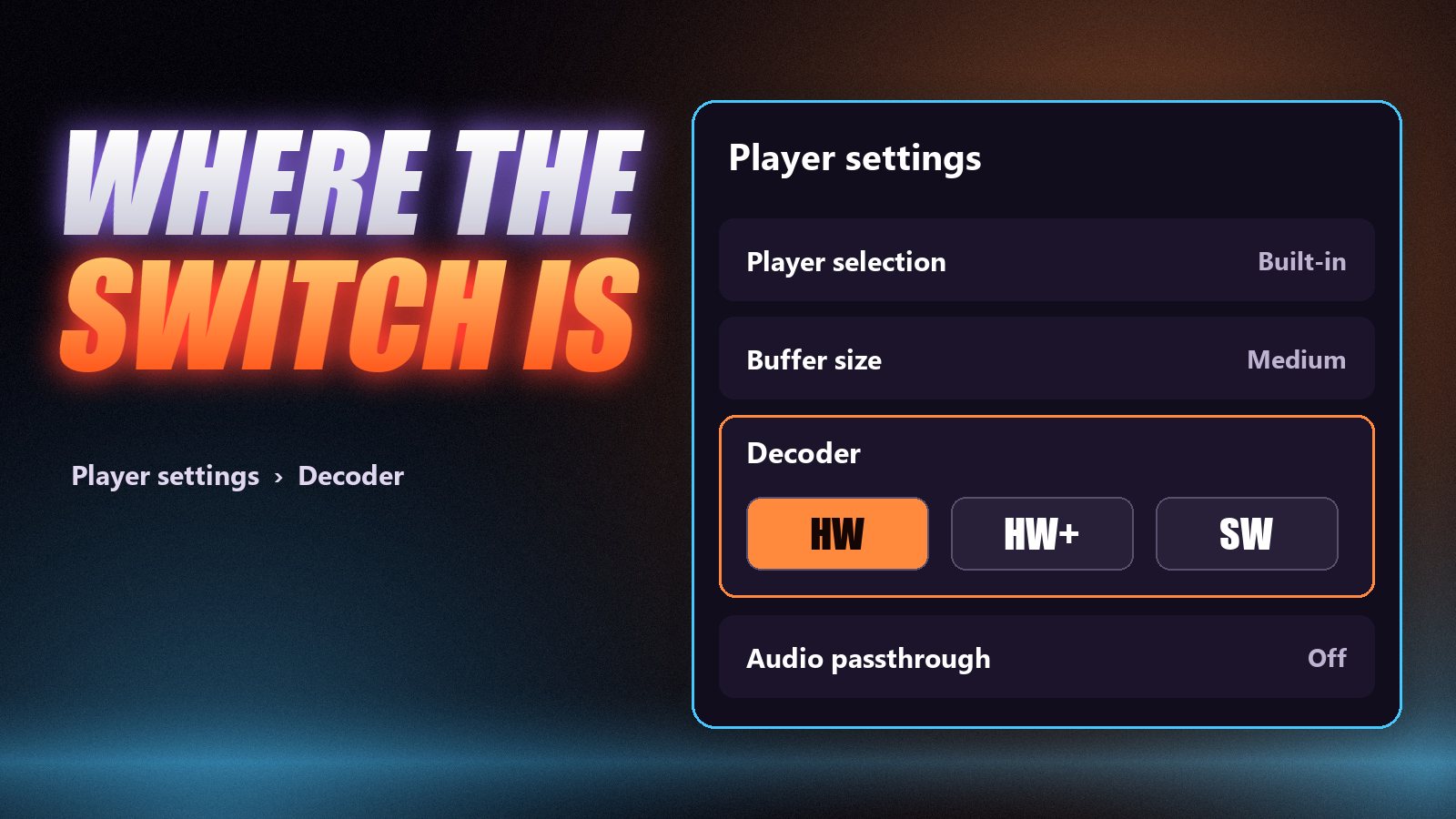
IPTV Smarters Pro (Android, Firestick): open Settings and check Player Selection first. The decoder choice belongs to the built-in player, so if an external player is selected, that player’s own settings apply. In the built-in player, the decoder options appear in the player settings or in the options menu while a channel is playing, depending on the version, usually labelled HW, HW+ and SW. If your build does not show them, the app is deciding automatically.
VLC: on Android, go to Settings → Video → Hardware acceleration and choose between Automatic, Disabled and the acceleration modes. On a computer, the equivalent is the hardware-accelerated decoding option in the input and codecs preferences. See our VLC guide for the playlist side.
TiviMate and other players: look in the playback settings for a hardware or software decoder option, or an option to use the system player. If you are choosing a player, our IPTV Smarters troubleshooting guide and the best IPTV player apps list may help.
Device by device
- Firestick and Fire TV. Hardware handles H.264 on every model and H.265 on 4K models. Use software only for the odd channel that refuses to play.
- Budget Android boxes. Hardware decoders on cheap chipsets are the most likely to show colour blocks or black screens. Software can be the better choice for SD and HD channels; keep hardware for 4K.
- Smart TV apps (Samsung, LG, Hisense). Usually no choice at all: the TV’s own decoder is used. If a format will not play there, a Firestick plugged into the TV is the practical fix.
- Phones and tablets. Recent processors are powerful enough for software decoding of HD, so switching costs little except battery.
Frequently asked questions
Start with the hardware decoder. It is faster, cooler and handles 4K smoothly on most modern devices. Switch to the software decoder only when a specific channel shows sound with no picture, colour blocks or a format the device rejects.
On players that offer it, HW+ means hardware decoding with the decoded picture passed straight to the screen. It is often the fastest option but the least compatible, and can cause problems with subtitles or aspect ratio. If HW+ misbehaves, use plain HW.
Usually the device’s hardware decoder does not support that channel’s video format, often H.265/HEVC on older devices. Switching the player to the software decoder normally brings the picture back.
It does not cause buffering, which is a network problem, but on a weak processor it can cause stutter and dropped frames that look similar. If motion is jerky without a loading circle, switch to the hardware decoder.
Hardware. 4K, especially in H.265, is too demanding for software decoding on Firesticks and most TV boxes. Make sure the device itself supports 4K HEVC playback, and see our internet speed guide for the bandwidth side.
No. The same stream is downloaded either way; the decoder only changes which part of your device turns it into a picture.
A setting worth knowing, not worth fiddling with
Leave the decoder on hardware and forget about it until a channel gives you sound without a picture or a screen full of green blocks. That is the moment to switch, and now you know why it works. What no decoder can fix is a stream that is not arriving fast enough. That depends on the server and your connection, and the quickest way to test it is to watch a busy channel at prime time on a free 24-hour Zoryflix trial.
The Zoryflix support desk
Written by the same team that answers your messages at 2 a.m. Everything here comes from real tickets — the fixes that worked, in the order they usually work. Something still not right? Message us on WhatsApp.