Nearly every tutorial about IPTV on Kodi tells you to install something. A repository, a wizard, a build with a name like a nightclub. None of that is necessary, and most of it is what turns a working media player into a slow, crash-prone mess. The add-on that plays live television in Kodi is already inside your installation. It is switched off, that is all.
What follows is the whole job: enable the built-in client, hand it your playlist, point it at your guide feed, and raise one cache value that the default configuration sets far too low for live streams. Ten minutes on a laptop, closer to fifteen with a remote control. No repositories, no APK, no wizard.
The quick answer
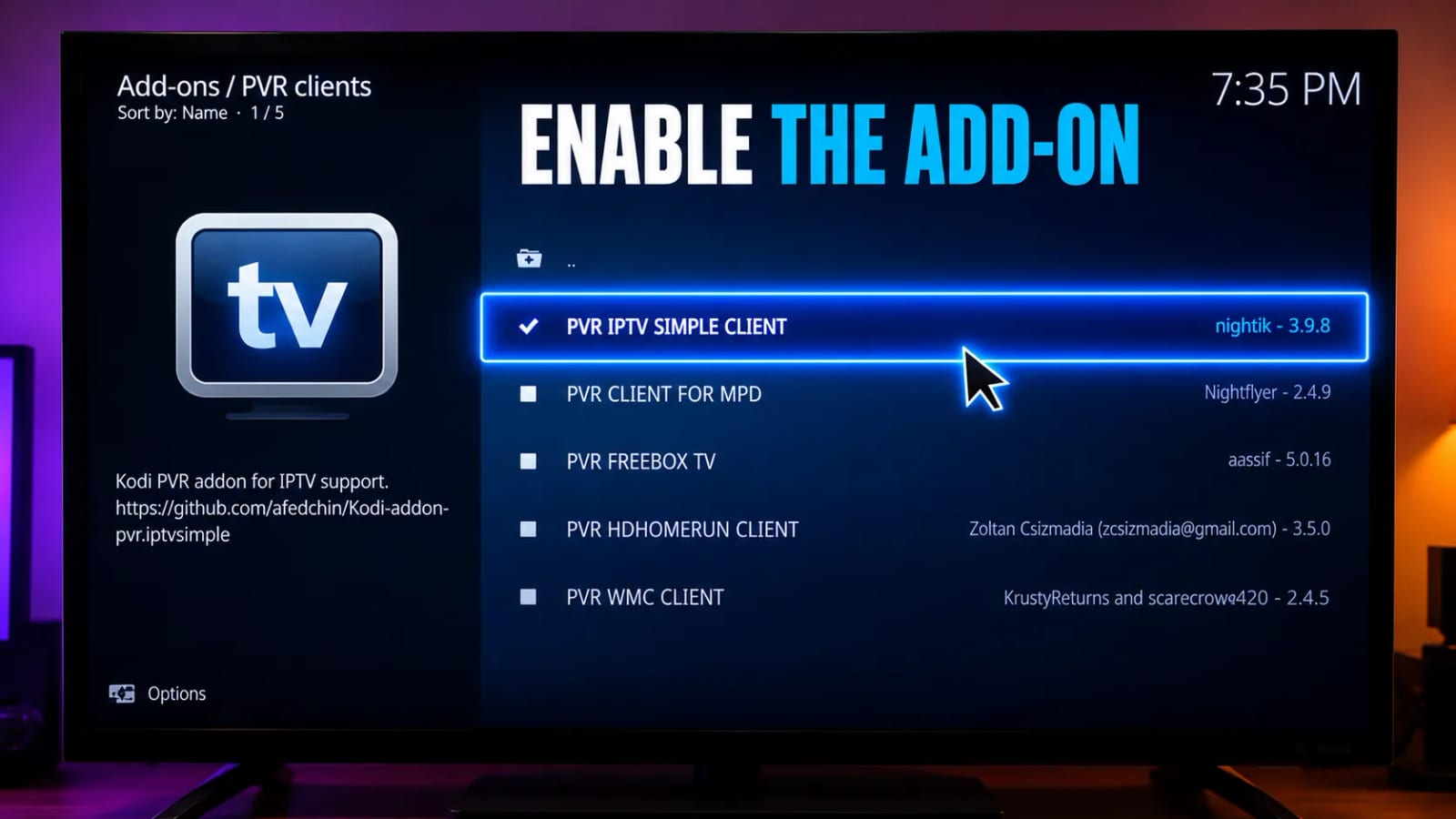
Open Settings → Add-ons → My add-ons → PVR clients → PVR IPTV Simple Client. Choose Configure, set the connection type to your provider’s format, paste your M3U URL or your Xtream server, username and password, add the XMLTV guide URL on the EPG tab, then Enable the add-on and restart Kodi completely. A TV row appears on the home screen with your channels in it. If it does not, you skipped the restart — that step is not optional on any platform.
Kodi supplies the player, not the channels
Kodi is an empty frame. It plays what a subscription you already hold sends it, and it has no channels of its own to give you. Use a service you pay for and are entitled to watch where you live, and treat anything advertising free premium sport through Kodi as exactly what it is.
What Kodi actually is, and why that trips people up
Kodi is a media centre shell. Out of the box it shows you a home screen, a settings tree and almost nothing else, because everything it can do depends on a source you connect to it — a folder of films, a music library, or in this case a live-TV backend. That design is why Kodi runs on a Firestick, a ten-year-old laptop, a Raspberry Pi and a mini PC with the same menus, and it is also why the first hour with it feels so unrewarding compared with an app that simply asks for a username.
The live-TV side is handled by Kodi’s PVR system, which was written for people with tuner cards and adapted long ago for internet streams. A PVR client feeds channels and guide data into it; the interface, the recording controls and the channel grid are Kodi’s own. Once you understand that split, the settings tree stops feeling arbitrary: you are configuring a client, and Kodi is drawing everything you see.
It also explains the strengths. Kodi’s guide grid is faster to move around than most dedicated players, favourites and channel ordering survive a provider change, and the same configuration works identically on every device you install it on. Compared with the apps in our player comparison, Kodi asks more of you at the start and gives more back afterwards.
What you need in front of you first
Three things, and gathering them before you start saves the usual twenty minutes of hunting through emails on a phone while holding a remote:
- Kodi, from kodi.tv or your platform’s official store. Version 19 or newer. Never a copy from a file-sharing site, and never a device sold with Kodi already set up.
- Your playlist details. Either an M3U or M3U8 URL, or an Xtream Codes set: server address, username, password. Ask which you have if you are not sure — most providers issue both.
- Your XMLTV guide URL. This is a separate address from the playlist and it is the single most commonly forgotten item in any Kodi setup.
Type them once into a note on the device you are configuring, or use a phone keyboard app that pairs with the box. Entering a sixty-character URL with a directional pad is where most people give up.
Method 1 — Add an M3U playlist
Find the client
1 min
From the home screen open the gear icon, then Add-ons → My add-ons → PVR clients. PVR IPTV Simple Client is in that list on a clean installation. Open it and choose Configure before you enable it — configuring first avoids a pointless first restart with no playlist attached.
Point it at a remote playlist
1 min
On the General tab set Location to Remote path (Internet address). The local-file option is for a playlist saved on the device, which is worth knowing about later but not what a subscription gives you.
Paste the URL exactly
2 min
In M3U play list URL, enter the address your provider sent, complete with http:// or https:// and everything after the question mark. A URL that ends in type=m3u_plus is the one you want where you have a choice — it carries channel names, group titles and logo links that the plain variant drops.
Enable, then fully restart
2 min
Click OK, then Enable. Now close Kodi properly — quit it from the power menu rather than pressing Home on the remote, which on Android leaves it running in the background. Reopen it and a channel-loading notice appears in the corner. On a large playlist that first load can take a minute or two; let it finish before touching anything.
A TV entry now sits on the home screen. Inside it you will find Channels, Guide, Recordings and Search. If the row is missing entirely, the add-on is still disabled. If the row is there but empty, the playlist URL did not resolve — paste it into a browser on a phone and see whether it downloads a file.
Method 2 — Use an Xtream Codes login instead
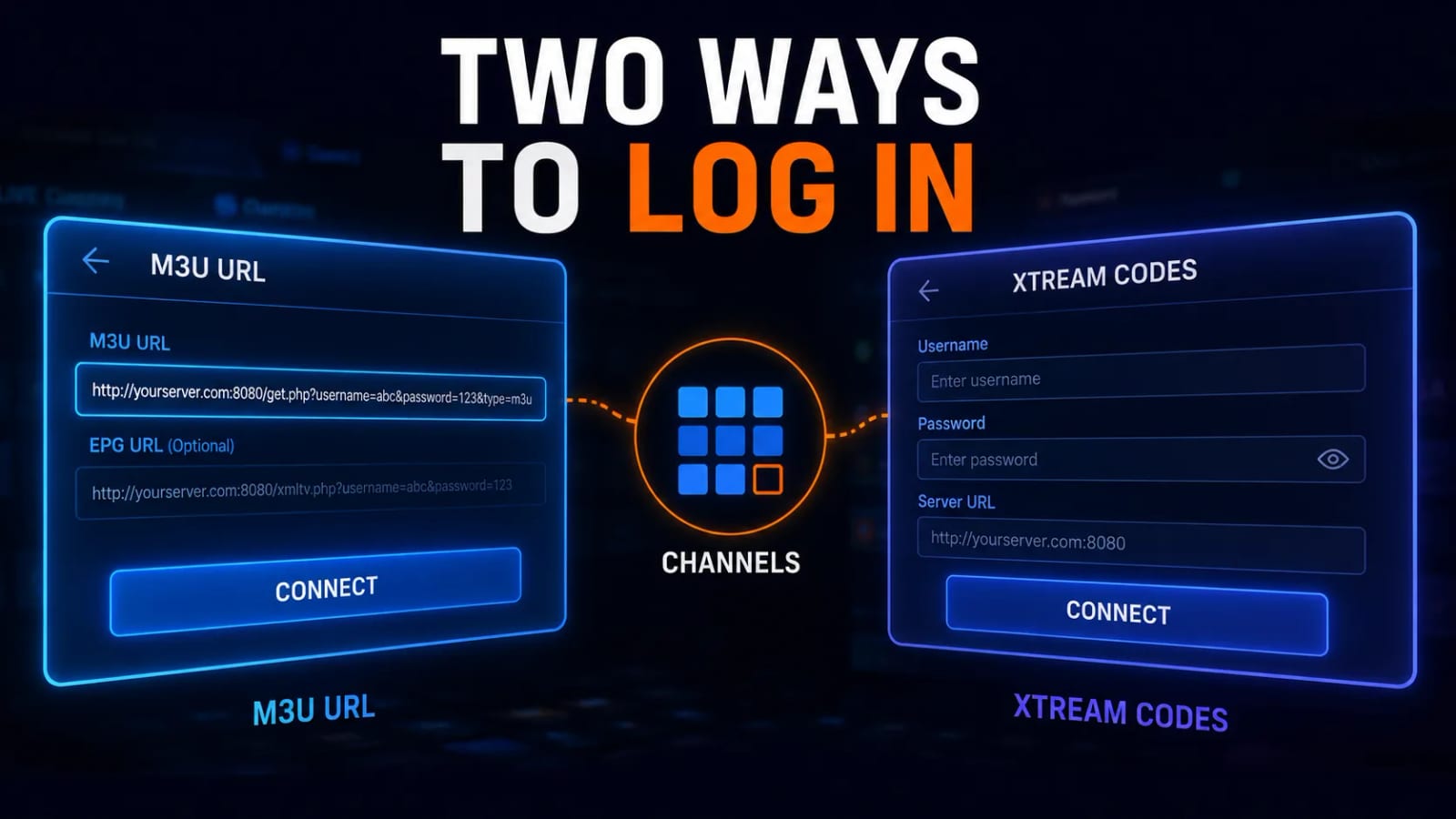
Recent Simple Client versions accept Xtream Codes directly, and where your provider supports it this is the better setup. One set of credentials brings the channel list, the category structure and the guide in together, and the client can refresh all three on its own when the provider changes something. With a plain M3U you get a snapshot, and you re-paste a URL every time something moves.
Switch the connection type
1 min
In the add-on’s configuration, look for the connection or playlist type selector on the General tab and choose the Xtream Codes option. The fields on the tab change to a server address, a username and a password.
Enter the server correctly
2 min
The server address includes the port, in the shape http://server.example:8080. Do not add /get.php or anything after the port — that belongs to the M3U form of the same account and pasting it here is the most common reason the login is rejected.
Choose what to import
1 min
Where the client offers it, import live channels and, if you want them, VOD categories. Leaving VOD out on a modest box is a reasonable trade: a library of a hundred thousand titles takes real memory to hold in the interface, and Kodi is at its best as a live-TV grid.
Ask for both formats
Even if you set Kodi up with Xtream, keep the M3U URL somewhere. It is the fastest way to test a subscription from a laptop when something stops working — see the VLC guide for that thirty-second check.
Making the guide, the logos and the groups behave
A configured Kodi with an empty Guide screen is the most reported problem in this whole setup, and it is almost never a fault. The playlist carries channels. The guide is a different file, at a different address, and Simple Client will not invent it.
Add the XMLTV URL
2 min
Open the add-on configuration again and go to the EPG settings tab. Set Location to Remote path and paste the XMLTV or guide URL from your provider. Compressed feeds ending .xml.gz are fine — Simple Client unpacks them itself.
Set the clock before the offset
1 min
Fix the device’s time zone in the system settings first, then only use the add-on’s EPG time-shift if programmes are still misaligned. Correcting a wrong clock with a manual shift works until the next daylight-saving change and then breaks in a way nobody remembers the cause of.
Turn on logos and tidy the groups
3 min
On the Channel logos tab, allow logos from the playlist so the icons embedded in an m3u_plus file are used. Then, under TV → Channels in Kodi’s own settings, open the Channel manager, hide the groups you will never watch and drag what remains into the order you want. Ten minutes here is the difference between a wall of forty thousand entries and something that feels like a television.
| Symptom | Where the problem is | Fix |
|---|---|---|
| Channels play, guide is blank | No XMLTV URL set | Add the guide URL on the EPG tab |
| Guide shifted by whole hours | Device time zone | Fix the clock, not the offset |
| No logos anywhere | Plain M3U or logos disabled | Request m3u_plus and allow playlist logos |
| Groups are one giant list | Playlist has no group titles | Ask for a grouped playlist, then order it in Channel manager |
The cache settings that stop the stuttering
Here is the part almost no guide includes, and the reason people conclude their provider is bad when the provider is fine. Kodi’s default read buffer was sized for playing a file off a hard drive. A live stream arriving over the internet needs a much larger cushion to ride out the normal, unavoidable wobble in delivery, and without it every small hiccup on the line becomes a visible pause.
The fix is a small file called advancedsettings.xml in Kodi’s userdata folder. Create it if it does not exist and put a cache block inside: a memory size in bytes, a read factor that lets Kodi fill the buffer faster than real time, and a buffer mode that applies the setting to network streams rather than local files. On a device with a gigabyte or more of free memory, a cache in the region of 100 MB with a read factor around 20 transforms marginal streams.
Do not over-allocate on a small stick
Kodi holds the buffer in memory. Setting 500 MB on a Firestick with limited free RAM makes playback worse, not better, and can cause the app to be killed mid-match. Raise the value in steps and stop at the first setting that plays a busy evening cleanly.
Two settings inside Kodi are worth checking at the same time. Enable hardware acceleration for your platform under Settings → Player → Videos so the chip decodes HEVC rather than the processor grinding through it, and leave adjust-refresh-rate on if your television handles it, because a 50 Hz broadcast displayed at 60 Hz produces the faint repeated judder people describe as not quite smooth in football.
And before any of it: try ethernet. Our guide to 4K IPTV speed explains why steadiness beats headline bandwidth, and why a 40 Mbps wired line outperforms a 300 Mbps connection over congested Wi-Fi at nine in the evening.
Kodi on the device you actually own
Kodi runs almost everywhere, but it does not behave the same everywhere, and the differences decide how good the result is.
| Device | How Kodi behaves | Watch out for |
|---|---|---|
| Firestick / Fire TV | Runs well, sideloaded | Tight memory — keep the cache modest |
| Android TV box | The best all-round home | Buy one with ethernet and HEVC decoding |
| Windows / macOS | Fastest to configure | Keyboard makes the URLs painless |
| Raspberry Pi | Excellent, very cheap | Use a quality power supply and heatsink |
| NVIDIA Shield | Smoothest playback available | Costs more than the subscription |
If you are setting Kodi up on a stick, our Firestick guide covers the sideloading step in detail, and the buffering guide covers what to do when a small device is being asked to do too much. On a television that cannot run Kodi at all — Roku, most Tizen and webOS sets — the answer is a cheap box in a spare HDMI port, which our hardware guide goes through.
Test the lineup before you tune anything
Run Zoryflix through Kodi for 24 hours on the device you actually watch on. If the channels you care about are stable, then spend the ten minutes on cache and channel order.
Builds, wizards and repositories: skip all of them
All-in-one builds. A build replaces your entire Kodi configuration with someone else’s skin, add-on set and settings. They are heavy, they break at every Kodi update, they are abandoned without warning, and they are the single biggest cause of the crashes people blame on Kodi itself. Nothing in this guide needs one.
Wizards that install everything you need. What you need is one add-on you already have. A wizard’s purpose is to add the things you did not ask for.
Repositories promising free premium channels. Beyond the obvious legal problem, these add-ons scrape unstable public sources, work for a fortnight and then fail. A paid subscription in Simple Client is stable because someone is being paid to keep the servers up.
Boxes sold pre-loaded. A device advertised with Kodi already configured is being sold for the configuration, not the hardware, and that configuration is usually an old build stuffed with piracy add-ons. Buy plain hardware and spend ten minutes.
Fixing what actually goes wrong
No PVR clients enabled. The client is configured but off, or Kodi has not restarted. Check the add-on page shows a Disable button — meaning it is enabled — then quit Kodi fully and reopen it.
The playlist loads but every channel fails. Suspect the account rather than Kodi. Open the same M3U in VLC on a laptop; if it fails there too, the line is expired, at its connection limit, or blocked upstream. If it plays in VLC and not in Kodi, it is a decoding problem — turn hardware acceleration off temporarily and see whether the picture returns.
Sound but no picture. An HEVC or 10-bit stream the device cannot decode in hardware. Try the provider’s lower-quality version of the channel, and check the acceleration setting for your platform.
Kodi freezes while loading the channel list. The playlist is too large for the device. Ask the provider for a filtered playlist with only the groups you watch. This one change fixes more Kodi complaints on cheap hardware than every other tip combined.
Everything worked yesterday and nothing works today. Check the subscription first, then whether the provider changed the server address. Kodi caches the last successful channel list, so a screen that still shows channels is not proof the connection is alive.
Frequently asked questions
You need one, and it is already installed. PVR IPTV Simple Client ships with every Kodi release from version 19 onward — it sits disabled under Add-ons, My add-ons, PVR clients. You enable it and point it at your playlist. Nothing has to be downloaded, and no third-party repository is involved at any stage.
No. Kodi is a media player with no content of its own. It reads a playlist supplied by a service you already pay for, in exactly the way a web browser reads a website it did not write. Any guide that promises Kodi will give you thousands of channels for free is describing something else entirely.
Use Xtream if your provider issues a server address, username and password, because Simple Client can then pull the channel list, the categories and the guide from one source and refresh them by itself. Use the M3U URL if that is all you were given. Both play identically; Xtream is simply tidier to maintain.
The add-on is configured but not switched on, or Kodi has not been restarted since you enabled it. Go back to Add-ons, My add-ons, PVR clients, open PVR IPTV Simple Client and check the button says Disable — meaning it is currently enabled — then close Kodi completely and reopen it.
Whichever current release your device runs well. Versions 19 Matrix, 20 Nexus and 21 Omega all bundle Simple Client and the menu paths in this guide barely differ between them. What matters far more than the version number is the hardware: a device that can decode HEVC in hardware will outperform a newer Kodi on one that cannot.
Kodi itself is free, open-source software published by a registered non-profit foundation, and installing it is legal everywhere. What people get into trouble for is the content they point it at. Use a subscription you pay for and are entitled to watch in your country, and avoid pre-loaded boxes and piracy builds.
Ten minutes, then leave it alone
Kodi has a reputation for being difficult that it mostly does not deserve. The genuine work is one add-on, two URLs and one cache value, and the reason so many people fail at it is that they were sent to install a build first. Do it the plain way and you end up with a live-TV setup that survives updates, moves to a new device by copying one folder, and looks the same on every screen in the house.
What Kodi cannot fix is an unstable source. Confirm the channels you care about hold up through a full evening before you invest an hour in channel ordering — start with the free 24-hour Zoryflix trial and tune the setup around something you already know works.
The Zoryflix support desk
Written by the same team that answers your messages at 2 a.m. Everything here comes from real tickets — the fixes that worked, in the order they usually work. Something still not right? Message us on WhatsApp.