Apple TV is one of the smoothest devices you can run IPTV on — fast, stable, and built on a proper app store — but the setup only goes smoothly if you use instructions written for tvOS, the software Apple TV runs. tvOS installs apps from the App Store on the device itself. It is not Android TV, there is no sideloading, and popular Android players such as TiviMate simply do not exist on Apple TV. The good news is that tvOS has several excellent IPTV players of its own, and once one is installed the experience is about as clean as IPTV gets.
This guide is specifically for IPTV on Apple TV running tvOS (the 4th-generation Apple TV HD and every Apple TV 4K). It covers which players to install, how to add an Xtream Codes or M3U subscription directly on the device, loading the guide, getting a perfect 4K picture, and what to do with an older Apple TV that has no App Store. Plan on about ten minutes.
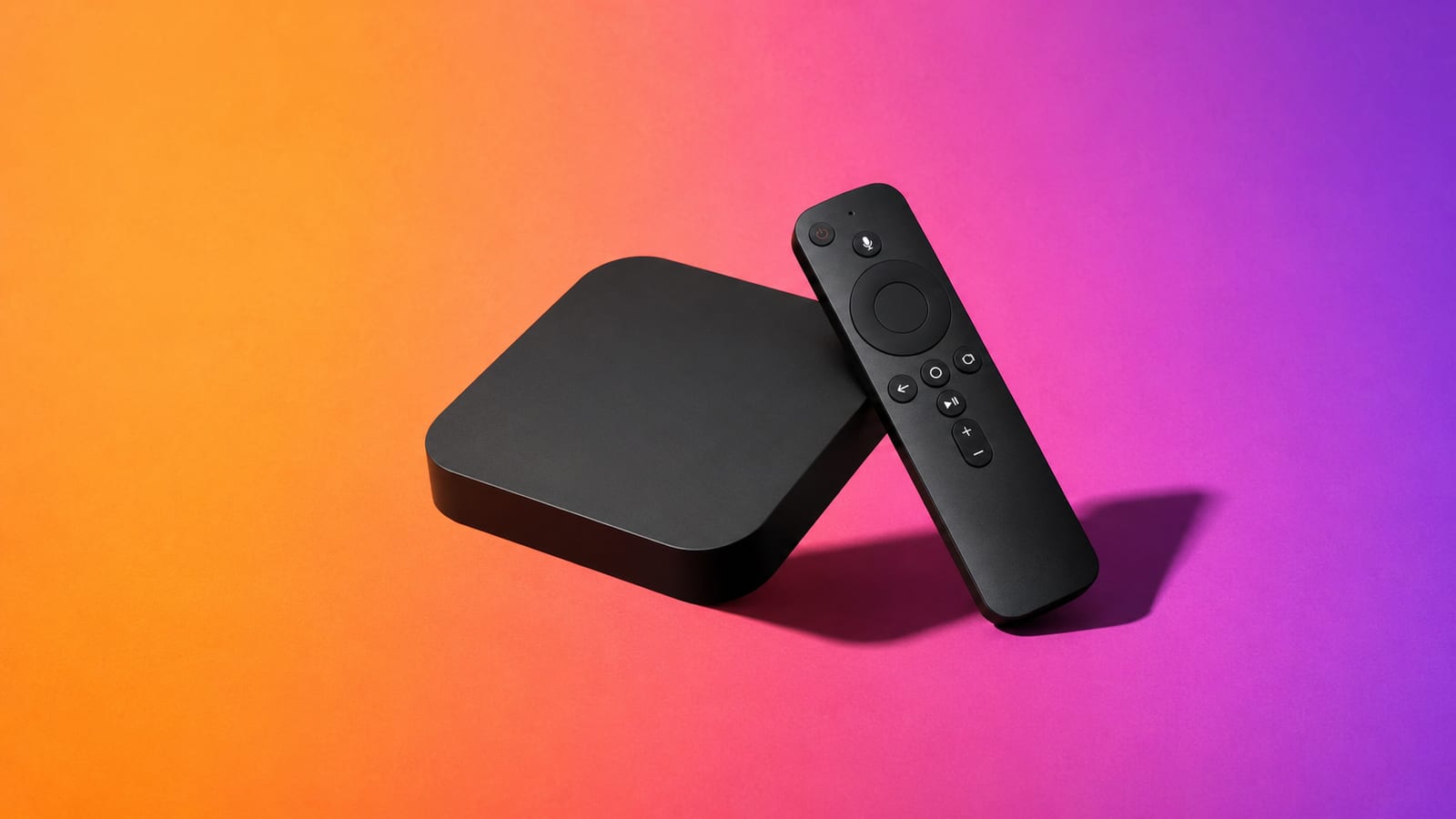
First, check your Apple TV model
Only Apple TV models with the tvOS App Store can install an IPTV player. The age of the box decides everything.
| Model | Software | Can it run IPTV apps? |
|---|---|---|
| Apple TV 4K (all generations) | tvOS | Yes — full App Store, best choice |
| Apple TV HD (4th gen, 2015) | tvOS | Yes — App Store, 1080p |
| Apple TV 3rd gen and earlier | Old Apple software | No — no App Store; use AirPlay (see below) |
If you are not sure which one you have, go to Settings → General → About; the model name is listed there. Any box that shows an App Store icon on the Home screen can run a player. If there is no App Store, it is a 3rd-generation Apple TV or older, and no current IPTV app will install — jump to the AirPlay section rather than fighting it.
What you need before starting
| Item | Why it matters |
|---|---|
| Apple TV HD or 4K on the latest tvOS | Players and updates come from the App Store |
| Xtream Codes login or an M3U URL | Server, username and password — or one playlist link |
| XMLTV EPG URL, if your provider supplies one | Adds programme names and the TV guide |
| Apple ID signed in | Required to download from the App Store |
| Ten minutes | Large playlists take time on the first import |
Typing long URLs with the Siri Remote is the slow part. Two shortcuts help: use the Apple TV Remote in iPhone’s Control Centre to type with the phone keyboard, or pick a player that lets you paste from a nearby iPhone. Keep your credentials open on your phone so you can compare every character — a single wrong port number or a stray space will make a valid line look dead.
Step 1 — Install a tvOS IPTV player
Open the App Store on Apple TV and search for IPTV — not the name of your provider, which is not an app. The players Apple TV owners use most are:
- iPlayTV — a long-standing paid tvOS player with a clean live-TV and VOD layout; good Xtream Codes and M3U support.
- GSE Smart IPTV — free with in-app purchases, flexible with playlists and external EPG.
- IPTV Smarters Player / Smarters Lite — familiar to anyone who used Smarters elsewhere; strong Xtream Codes support.
- Televizo and Flex IPTV — solid alternatives if the others do not suit you.
Pick the player by the login your provider gave you. A server URL, username and password means you want strong Xtream Codes support. One long M3U link works in any playlist player. Prefer a player that also takes an external EPG (XMLTV) so the guide fills in.

Step 2 — Add your Xtream Codes or M3U details
Unlike some Smart TV players, tvOS players let you enter everything on the device — there is no MAC address and no website activation step. Open your player and choose to add a playlist or user.
- Xtream Codes: choose “Add user / Xtream Codes login”, then enter a profile name, the server address exactly as supplied, your username and your password. Do not add
/player_api.phpunless your provider explicitly included it. - M3U: choose “Add playlist / M3U URL” and paste the full link. If the player asks for an external EPG, paste the XMLTV URL in the separate field.
Save once and wait. A large service can take a minute or two to pull live groups, movies, series and guide data on the first load. Give each source a short profile name so you can tell them apart later.
Step 3 — Load the EPG and tidy the channel list
A full import can produce tens of thousands of channels, and leaving every group visible makes even a fast Apple TV feel cluttered. First trigger an EPG refresh and let it finish. Then hide the languages and countries you never watch, keep sports, news, movies, kids and your local groups, and drop your twenty most-used channels into Favourites.
If programme titles are missing or shifted, check the time zone under Settings → General → Time Zone before touching any EPG offset in the app. A guide wrong by exactly one or two hours is almost always a clock or daylight-saving issue, not a broken guide. Empty rows usually mean a missing XMLTV source or channel IDs that do not match.
Try the full Zoryflix lineup on your own Apple TV for 24 hours — no card, no contract, and real support if your player needs a hand. Start the free 24-hour trial →
Step 4 — Get a flawless 4K picture
Apple TV is rarely the weak link — it has strong HEVC/H.265 decoding and, on most models, an ethernet port. That means when IPTV struggles on Apple TV, the network is almost always the cause. Aim for at least 15 Mbps to the device for stable HD and 35 Mbps for 4K, with headroom for other users at home.
Use ethernet if your Apple TV 4K has the port — it is steadier than Wi-Fi and more than fast enough for 4K. The Wi-Fi-only models support Wi-Fi 6; keep the box on the 5 GHz band, in the open, and not tucked behind the TV. Our 4K IPTV speed guide explains why consistency and jitter matter more than the headline number on your broadband bill.
Set the Apple TV video output to match your content: Settings → Video and Audio → Format. “4K SDR” or “4K Dolby Vision” are fine, but enabling Match Content (Match Frame Rate and Match Dynamic Range) lets Apple TV switch to each stream’s native frame rate, which removes the subtle judder some people see on live sport. Inside the player, leave hardware decoding on and start with the default buffer.
Old Apple TV? Use AirPlay instead
A 3rd-generation Apple TV or older has no App Store, so no IPTV player will install. You are not stuck, though: install an IPTV app on your iPhone or iPad (players like GSE Smart IPTV or IPTV Smarters exist on iOS), start playback, then AirPlay the screen to the Apple TV. It works, but it ties up your phone and depends on your home Wi-Fi for two hops. If you watch often, a cheap current Apple TV HD or any Fire TV Stick is a better long-term answer — our IPTV device guide covers the options.
Fix the common Apple TV problems
The playlist will not load. Re-check the server URL, protocol, port, username and password. Test the same details in a second player or on your phone. If every device fails, it is not an Apple TV problem — it is the account or the source.
Channels buffer even though Apple TV is fast. This is almost always the network. Switch to ethernet or 5 GHz, reboot the router and Apple TV, and test several countries and quality levels. One failing channel is a source issue; every channel failing points to the network or the account. Our buffering fixes guide applies to Apple TV too.
The picture stutters on live sport. Turn on Match Frame Rate in Video and Audio settings so Apple TV outputs each stream at its native rate instead of forcing 60 Hz.
The player crashes or freezes. Force-close it (double-press the TV/Home button and swipe up), then reopen. If it persists, delete and reinstall from the App Store — your Xtream Codes or M3U details can be re-entered in a minute.
The EPG is shifted by a few hours. Set the correct time zone and automatic clock on the Apple TV first, then use the app’s EPG offset only if needed. Correcting a wrong system clock with a manual offset just breaks the guide again at daylight-saving time.
Frequently asked questions
Can I install IPTV on Apple TV?
Yes, on an Apple TV HD (4th gen) or any Apple TV 4K. Open the App Store on the device and install a player such as iPlayTV, GSE Smart IPTV or IPTV Smarters Player, then add your Xtream Codes login or M3U link. The app is only a player; you still need your own legitimate IPTV subscription.
Which Apple TV models support IPTV apps?
Any Apple TV with the tvOS App Store: the 4th-generation Apple TV HD (2015) and every Apple TV 4K. The 3rd-generation Apple TV and older have no App Store and cannot install players; use AirPlay from an iPhone instead.
Is TiviMate available on Apple TV?
No. TiviMate is an Android-only app with no tvOS version, so it cannot be installed on Apple TV. The closest equivalents on Apple TV are iPlayTV and IPTV Smarters Player.
Should I use Xtream Codes or M3U on Apple TV?
Use Xtream Codes when the player supports it, because it usually imports channel groups, movies, series and EPG together. Use M3U when the app only accepts a playlist URL; you may then need a separate XMLTV EPG link for the guide.
Why does IPTV buffer on my Apple TV?
Apple TV is rarely the cause — it decodes 4K easily. Buffering almost always comes from the network. Use ethernet or 5 GHz Wi-Fi, restart the router and the box, and compare several channels. If only one channel struggles it is a source problem; if all do, look at the network or account.
Can I use an old Apple TV (3rd generation) for IPTV?
Not directly, because it has no App Store. Install an IPTV app on your iPhone or iPad and AirPlay the playback to the Apple TV. For regular viewing, a current Apple TV or a Fire TV Stick is a better solution.
A clean device deserves a clean setup
For IPTV on Apple TV, the dependable path is simple: confirm your model has the App Store, install one good tvOS player, enter your Xtream Codes or M3U details directly on the device, wait for the first import, trim the channel groups, and give the box a stable connection. There is no sideloading and no MAC activation to worry about — Apple TV is one of the least fiddly platforms once the right player is in place.
If your Apple TV is a pre-App-Store model, use AirPlay from an iPhone or move to a current device rather than fighting it. And when you want to test the finished setup with nothing at risk, start with the free 24-hour Zoryflix trial.
The Zoryflix support desk
Written by the same team that answers your messages at 2 a.m. Everything here comes from real tickets — the fixes that worked, in the order they usually work. Something still not right? Message us on WhatsApp.